Service
Each printer's maintenance plan, service log and part history. A task comes due on print hours, days, prints or kilograms, whichever runs out first.
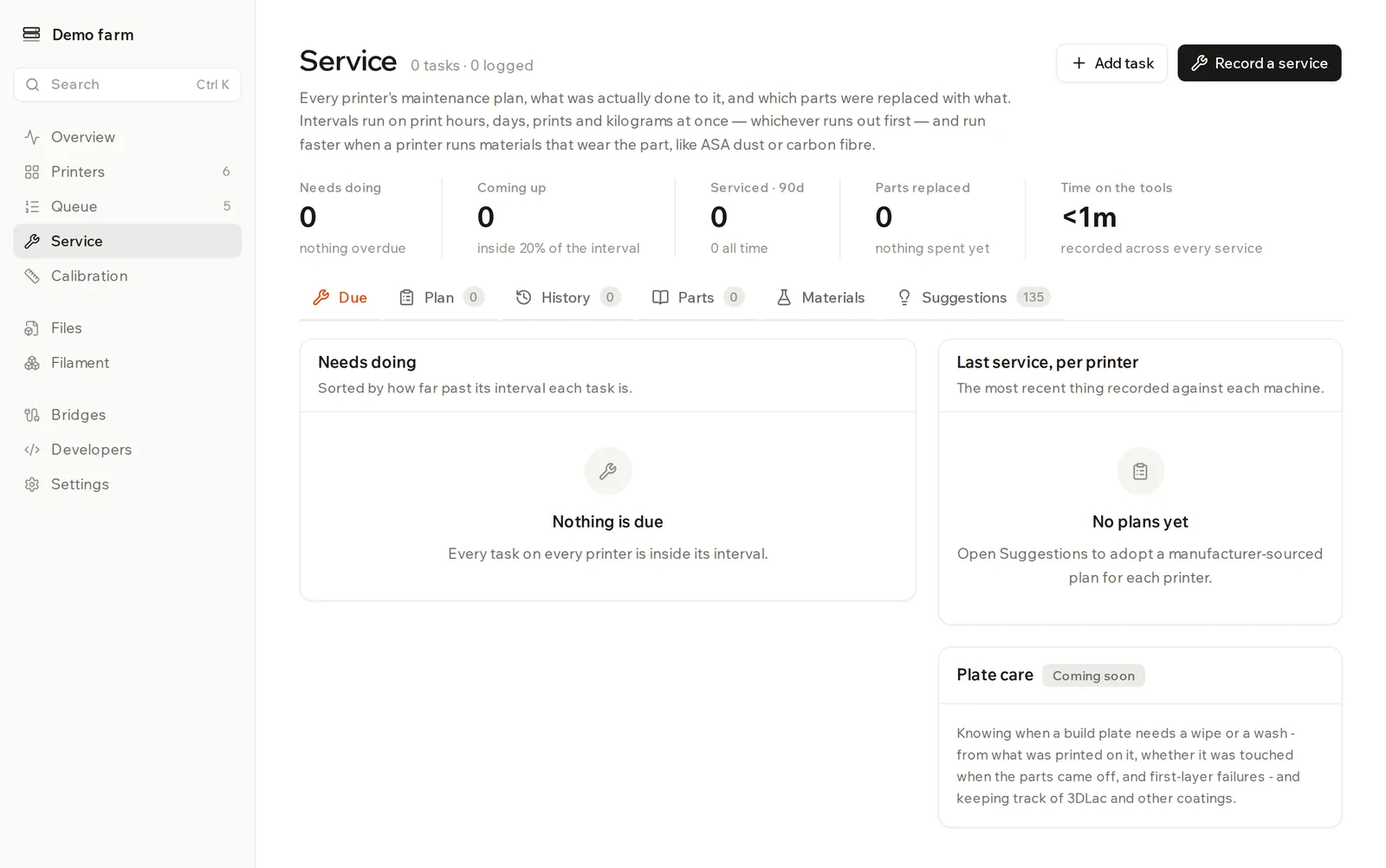
Service holds every printer's maintenance plan, what was actually done to it, and which parts were replaced with what. Open it to see what needs doing today.
Set up a plan for a printer
- Open the Suggestions tab. Each printer has its own panel.
- Click Adopt the whole plan.
To pick tasks one at a time, click Show the N tasks not on this plan and then Add on the ones you want. Each task shows its interval, procedure, what you need in hand, and a Source link to where the interval comes from.
Suggestions also reads each printer's history. If it finds something, such as abrasive filament through a soft nozzle, it says why. Some come with an Apply button.
To write your own task, click Add task.
See what needs doing
The Due tab has two lists.
- Needs doing: tasks past their interval, worst first.
- Coming up: tasks in the last fifth of their interval, worth doing alongside a job that's already due.
| Status | When |
|---|---|
| Coming up | 80% of the interval used |
| Due | 100% used |
| Overdue | 150% used |
A task has up to four intervals at once: print hours, days, prints and kilograms. Whichever runs out first makes it due. A due task doesn't stop a printer taking jobs, and it's your call when to do it.
The maintenance.due webhook fires once per task per cycle, not every day. See the API reference.
Record a service
Click Log it on a due task, or Record a service at the top for anything else.
- Choose the Printer and Type.
- Under Against a scheduled task, pick the task if there is one. This restarts all of its intervals from now.
- Fill in What was done. Fill in Symptom only if something went wrong.
- Click Save to the log.
Done by, When, Minutes spent and Notes are optional.
Record a part swap
In the same dialog, click Add part. Enter what came off under Removed, what went on under Installed, and the reason under Why.
For a nozzle, hotend or print core, also set New nozzle size and New nozzle material if they changed. This updates the printer's own nozzle setting, which routing reads. Without it, jobs keep matching the old nozzle.
A part swap also marks the affected calibration values as out of date.
Change a task
On the Plan tab, each task has these actions:
- Log: record that it was done.
- Pause this task: keep it on the plan without it coming due.
- Edit this task: change anything, including its intervals and when it was last done.
- Remove this task: services already logged against it stay in the history.
A task from the catalogue also has Reset to standard in its edit dialog. It restores the original title, procedure, intervals and material handling, and leaves the last-done date alone.
See how materials change a plan
Some materials wear parts faster, so intervals run faster on them. The Materials tab shows, per printer, what it has printed and which tasks that speeds up. Switch between Last 90 days and All time.
Click Wear factors to change how much faster each kind of material wears each part. Empty cells use the standard value, and Reset all to standard removes your edits.
For one task, open its edit dialog and choose Standard, My own rules or Off under Material.
Find out how long parts last
The Parts tab lists every swap. What each component actually lasts gives the mean life on your farm in print hours. It takes two swaps of the same part before there's anything to measure.
The History tab lists every logged service. Deleting a record makes the measured life of anything replaced after it wrong, so the dialog warns you first.
See one printer's whole life
Click a printer's name to open its page. It has a timeline of services, part swaps, setup changes and calibrations, which you can filter and search by part, serial or symptom. It also shows the nozzle fitted now, each part's history, and the printer's upcoming tasks.
Plate care on the Due tab is marked Coming soon and has no controls yet.