Calibration
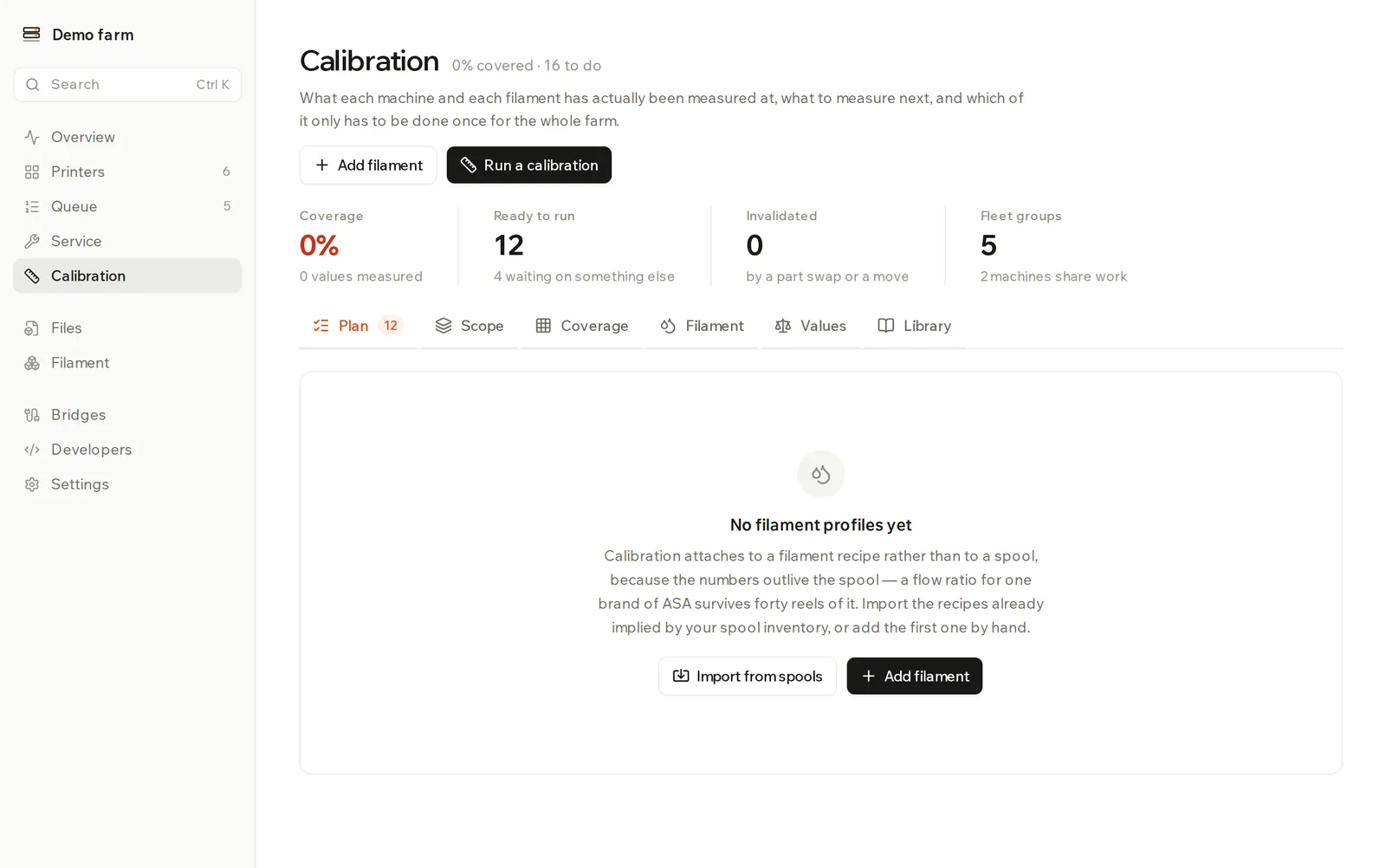
Track what each printer and filament has been measured at, and what to measure next. Values shared by a whole farm are only measured once.
Calibration records what each machine and filament has actually been measured at, tells you what to measure next, and works out the result from what you read off the print. It stores numbers and does the arithmetic. It doesn't slice or send the test print, and it doesn't change your slicer.
Why you don't calibrate everything on every printer
Every value belongs to one of three scopes:
- Per machine: describes one physical frame. Never copied between printers.
- Per filament: describes the plastic. One measurement, read by every printer you own.
- Machine × filament: one plastic through one extrusion system. Measured on one machine in a group, then confirmed on the others.
Two printers are in one group when they have the same model, nozzle and extruder kind. The Scope tab works out how many runs your farm needs compared with testing everything everywhere, and lists your groups.
Add your filaments
A profile is a recipe of brand, material and variant, not a spool. Two brands of the same plastic are two profiles.
If you have no profiles yet, click Import from spools to create them from your spool inventory. Or click Add filament and enter them by hand.
The Filament tab shows starting points for each profile's material, such as nozzle, bed and drying temperatures.
Run a calibration
Open the Plan tab. Do these next lists what's ready, most useful first, with the printing time and grams each one costs. Click Run on a row, or Run a calibration at the top to pick your own.
The run has three stages, because the print happens in between:
- Set up. Check the Printer, Test and Filament. Set this before slicing lists the settings to use. If there's a Before you start list, tick All of that is true. Click Start the run.
- Print it yourself. Slice the test with those settings and print it. Starting a run doesn't take the printer out of the queue, so click Skip for now on the printer if you need it free. See Queue.
- Read the print. Come back to the dialog, follow What to look at, enter your readings and click Work out the value.
The result shows the value, the working, and which setting to put it in. Type it into your slicer or firmware yourself. Abandon discards a run you won't finish.
If a material must be dried, the dialog warns you first. A reading off wet filament measures the water, not the plastic.
Why a step is waiting
Waiting on something else lists steps that read through a value that isn't settled yet. Running them now would measure the wrong thing, and Blocked by names what's missing. Run anyway is there if you want it.
| Badge on a step | What it means |
|---|---|
| Measure | No value yet. |
| Re-measure | The value is out of date or getting old. |
| Confirm | A value carried over from a similar printer. One short test print checks it. |
| Refine | An optional test. |
| Blocked | Depends on another step. |
See what's covered
The Coverage tab has a grid of printers against filaments, for the values that depend on both. Per-machine and per-filament work is listed below it.
| State | What it means |
|---|---|
| Measured | Current. |
| Worth re-checking | Getting old. |
| Carried over | Proposed from a similar printer. |
| Invalidated | A part swap or other change made it wrong. |
| Not measured | No value yet. |
Reuse a value on a similar printer
On the Scope tab, Values that could be carried over lists measurements its sibling printers could use. Click Carry all over. They arrive as proposals, and the plan then asks for one short confirmation print rather than a full run.
Tell Rackrew something changed
Part swaps logged in Service mark the affected values on their own. For anything else, such as moving a printer or updating its firmware, click Something changed on the Coverage tab, choose What happened, and click Mark affected values stale.
Check or fix a value
The Values tab lists every measured value. A new measurement replaces the old one without erasing it. Click Show history to see earlier values.
- Mark stale: keeps the number as the best guess until a new one exists.
- Not stale after all: undoes that.
- Delete: removes it from the history too.
Look up a test
The Library tab explains every test under Procedures and every number under Parameters, including what makes each one wrong again. Each test has a Source link.
Calibration runs also appear on each printer's timeline in Service.