Queue
Add print jobs, see why each one is or isn't running, and set their order. Sticky jobs go first, then normal jobs, then fillers.
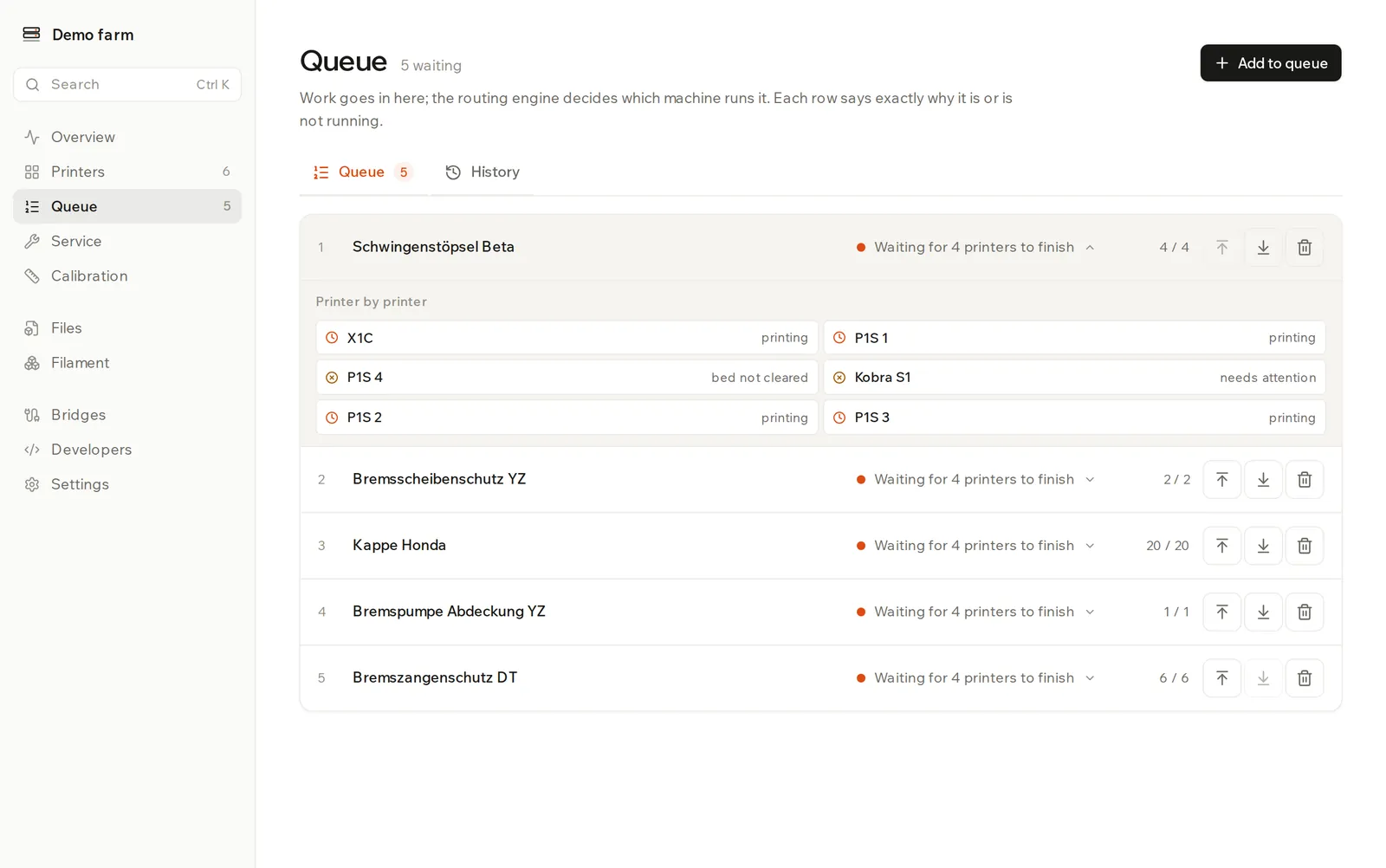
The Queue is the list of work waiting for a printer. You say what to print and how many copies; the routing engine picks the machine, and each row says why the job is or isn't running.
Add a job
- Click Add to queue.
- Under File, choose a sliced file. A Needs line shows the nozzle, printer model, filament and time the file asks for.
- Under How many, choose A set number and enter it, or Run forever (filler).
- Click Queue it.
You don't choose a printer. Idle printers are checked as soon as you add the job, and again every ten seconds. You can also click Queue next to a file on the Files page.
Why a job is waiting
Each row shows one summary line. Click it to open Printer by printer, which gives the verdict for every machine. The summary isn't shown on phone-sized screens.
| Summary | What it means |
|---|---|
Printing on 2 printers | Copies are running now. |
Ready to start on P1S-01 | A printer can take it. It starts within ten seconds. |
Waiting for P1S-01 to finish | A capable printer is busy. Nothing is wrong. |
P1S-01 is offline | A capable printer is out of service. See the list below. |
Nothing can run this, then a reason | No printer in the farm can run the file. The reason shown is the most common one across your printers. |
A capable printer can be out of service for four reasons:
needs attention: a print failed on it. Open the printer and click Back in rotation.paused: someone clicked Skip for now on the printer. Open it and click Resume.offline: the printer or its bridge isn't reachable.bed not cleared: a print finished. Click Bed cleared on the printer's card.
Why a printer can't run a file
These are the reasons you see in Printer by printer. The first check that fails is the one shown.
| Reason | What to do |
|---|---|
needs tag production | Add the tag to the printer, or queue the job without it. |
excluded by tag test | The entry excludes this tag. Exclusions can only be set through the API. |
needs a 0.6 mm nozzle | Fit that nozzle and record it in Service, or slice for the size you have. |
sliced for P1S | The file was sliced for another printer model. Slice it for this one. |
PETG-CF needs a hardened nozzle (...) | Filled filament never goes through a soft nozzle. Fit a hardened one and set it on the printer. |
needs PLA #1A1A1A loaded | No slot holds that material and colour. |
not enough PLA #1A1A1A loaded | The spool in that slot has too few grams left for the job. See Filament. |
TPU only runs from the external spool, and it is not loaded there | Flexible filament can't go through the multi-material unit. Load it on the external holder. |
needs 2 filaments, printer has 1 | The printer has no multi-material unit and too few filament lines. |
slot 0 must hold PLA | Without a multi-material unit, each filament has to be in the slot the file names. |
Move a job to the front
Click Send to top or Send to bottom on the row. There is no drag and drop.
This only changes the order inside a job's own group. Sticky jobs always come first, then normal jobs, then fillers, so a filler sent to the top still sits under every normal job.
A normal job also moves to the back each time a printer takes a copy, so mixed work takes turns. To keep a job at the front until it's done, make it sticky.
Run a batch on several printers
Tick Hold the top of the queue until every repetition is done when you add the job. Several printers work the batch in parallel and it keeps its place until every copy has started. This shows as a sticky badge on the row.
The dashboard can't change this after adding. Remove the job and add it again.
Keep idle printers busy
Choose Run forever (filler). A filler has an ∞ counter and a filler badge. It only starts when no other job can run on that printer. A filler print that is already running isn't stopped when other work arrives.
Keep a job on certain printers
Enter one or more tags under Restrict to printers tagged. A printer needs all of them. Set a printer's tags by opening it on the Printers page.
Read the counter
3 / 5 means three of five copies haven't been handed to a printer yet. A copy is counted when it's sent to a printer, not when it finishes.
That means a job leaves the Queue when its last copy is sent out. Follow it on Printers or under History.
If a print fails, the copy goes back in the queue and that printer stops taking work until you click Back in rotation.
Remove a job
Click Remove from queue on the row. Prints already running aren't stopped, and finished prints stay in History.
Look up past prints
The History tab lists every print with its printer, outcome, time, filament and start time. Failed prints show their error, and retries show the attempt number.
Filter with Every outcome, or search with Find a print…. Search only covers rows already loaded, so click Load more if you can't find an older print.
See how routing works for the full order of checks.