Bridges
A bridge is the agent on your own network that drives your printers. Run it in Docker on an always-on machine; one reaches a whole network.
A bridge is the small program on your own network that drives your printers. Without one, Rackrew has no route to your machines. This page is where you add bridges, check they're connected, and keep them up to date.
Add a bridge
Today that means running the Rackrew agent in Docker. You need a Linux computer or Raspberry Pi that stays on, on the same network as your printers.
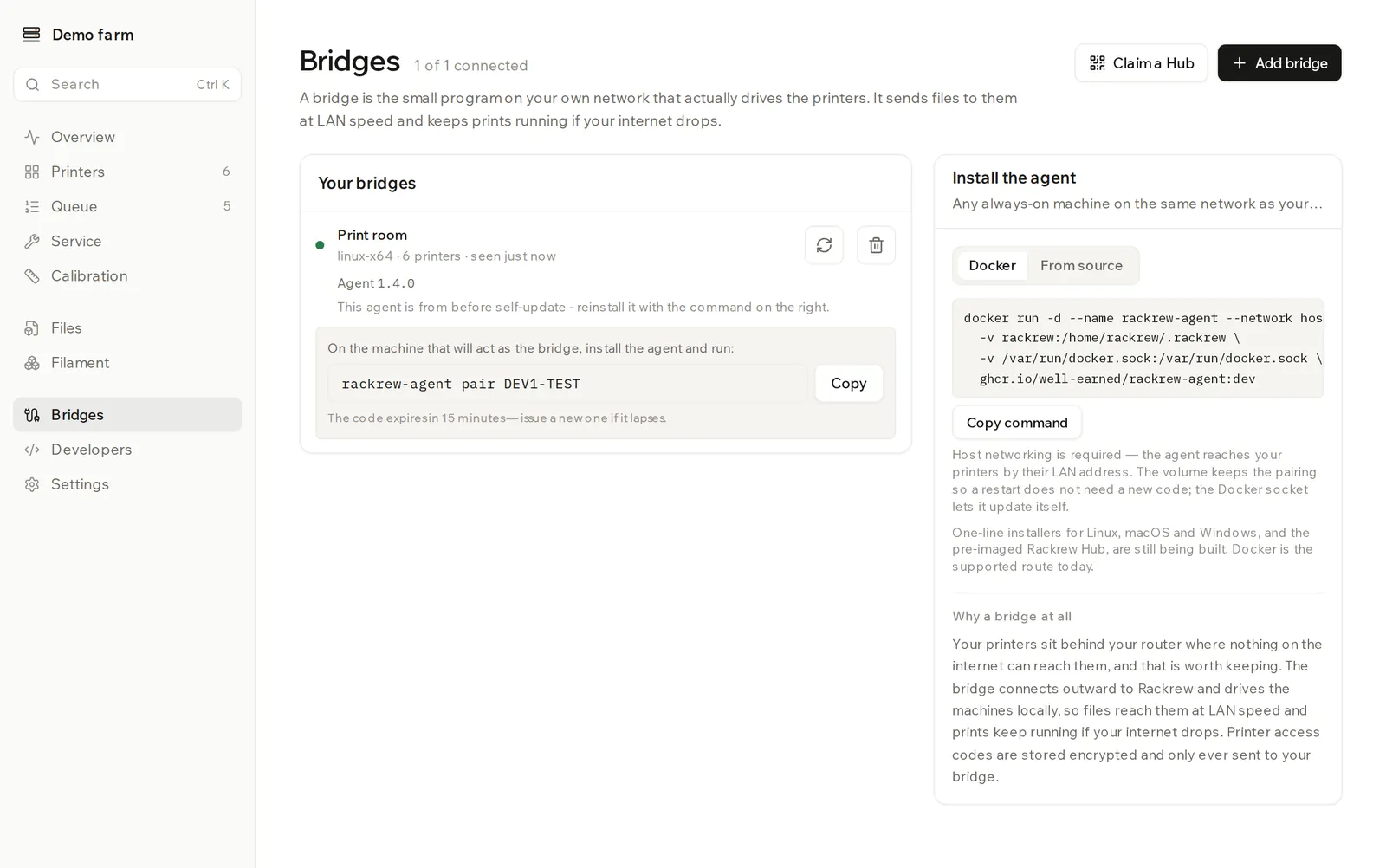
- Click Add bridge, enter a Name such as "Workshop Pi", and click Create and get a code.
- Copy the command in the bridge's row and run it on that computer. It downloads the agent and pairs it in one step. The code in it expires after 15 minutes. If it lapses, click Issue a new pairing code.
What the command does
--network hostis required, because the agent reaches your printers by their LAN address.--user 0and the Docker socket let the agent update itself. They also give it full control of that computer's Docker. If you prefer, leave both out and update by hand: remove the container, then run the command again with a new pairing code.- The
rackrewvolume keeps the pairing, so a restart needs no new code. - The image contains only the agent. You don't need an account or a login to download it.
Once paired, the row shows the platform, how many printers are attached, and when it was last seen. You can then add printers.
One-line installers and the pre-imaged Rackrew Hub are still being built. Claim a Hub is for those units.
You usually need only one
One bridge reaches every printer on its network. You only need a second for printers on a different network, such as another building. Bridges aren't limited on any plan, so you can run a spare.
Check a bridge is connected
The header shows how many paired bridges are connected, for example 1 of 2 connected.
| Badge | What it means |
|---|---|
| not paired | The command in its row hasn't been run yet. |
| offline | Paired, but silent for more than 90 seconds. Check the machine and its network. |
Keep the agent up to date
Each paired bridge shows its agent version, with up to date or update available.
Auto-update is on by default. Switch it off and you decide when, with Update now. That button is greyed out while the bridge is offline. Updates wait for running prints to finish.
| Message | What it means |
|---|---|
Update sent… | The bridge has been told to update. |
Updates once the running print has finished | It's waiting for a print. |
Downloading the update… | A progress bar shows how far along it is. |
Restarting with the new version… | It's almost done. |
Last update failed, still on the previous version | Nothing changed. The agent keeps running the old version. |
Runs outside Docker or without the Docker socket, so it cannot update itself | Update it where you installed it. |
Move a printer to another bridge
Open the printer on the Printers page and choose the bridge under Bridge. It connects within a few seconds.
Replace the machine a bridge runs on
Click Issue a new pairing code on the bridge's row. The agent on the old machine is signed out straight away and stays offline until you run the new command from its row.
Remove a bridge
Click Remove bridge. Printers attached to it stop being reachable until you move them to another bridge, and the agent on that machine can no longer connect.
What travels where
- The bridge connects outward to Rackrew, so your printers stay behind your router and nothing on the internet has to reach them.
- Print files are stored in Rackrew. The bridge downloads each file once, keeps a copy, and sends it to the printer over your LAN.
- Printer access codes are stored encrypted by Rackrew and sent to the bridge when it connects.
- The only credential the bridge writes to disk is its own token.
How routing works has more on this.